Wi-Fi Range Extender vs Access Point: Which to Choose? (November 2026)
Choose a Wi-Fi range extender when you need coverage without running cable, and choose an access point when you can use Ethernet for a stronger connection. The best option depends on your wiring, layout and network demands.
On this page (9 sections)
- Wi-Fi range extender vs access point: which is better?
- How does a range extender connect devices?
- How does an access point connect devices?
- Which option works better for security cameras?
- Is wired backhaul worth the extra setup?
- What should you choose for a large home?
- Which access point system should you use?
- Can you use both an extender and an access point?
- Wi-Fi range extender vs access point: final choice
Choose a Wi-Fi range extender when you need coverage without running cable, and choose an access point when you can use Ethernet for a stronger connection. The right choice depends on your home layout, network wiring and the devices you need to connect.
A range extender receives your router's Wi-Fi signal and repeats it farther away. An access point receives the network through Ethernet and creates Wi-Fi at its installation point.
That difference in connection method shapes almost everything else in this comparison. A wireless extender shares the path between your router and the devices it serves, while an access point brings the network to the spot where wireless coverage is needed.
If you have no practical way to run Ethernet to a room, an extender is often the fastest way to improve a weak signal. If a cable route exists, an access point usually gives you a more direct and predictable foundation for local devices.
This Wi-Fi range extender vs access point comparison covers wireless repeating, wired backhaul, setup, coverage and practical use with security cameras and other home devices.
You will also see how the featured models differ in stated speed, device capacity and management options. Those details help, but they do not override placement, signal strength or the quality of the connection feeding each device.
For a camera in a side room, a phone used in a bedroom or a work laptop in an office, the best option is the one that keeps a reliable link at the exact place of use. A strong headline figure cannot rescue a poorly placed extender or a badly routed cable.
Look at your walls, floors and existing wiring before you decide. Then match the device to the job, rather than buying the largest number and hoping the layout will cooperate.
 Best for broad wireless coverage
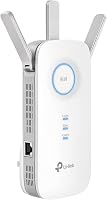
TP-Link AC1900 WiFi Range Extender RE550
 Best for Wi-Fi 6 coverage
TP-Link AX3000 WiFi 6 Dual-Band Range Extender
Wi-Fi range extender vs access point: which is better?
An access point is usually the better technical choice when Ethernet is available, while a range extender is the simpler choice when it is not. Both can improve coverage, but they reach that goal in different ways.
A wireless extender must first receive a usable signal from the main router. It then sends that signal to devices in the weak-coverage area.
Walls, floors and distance affect both links.
An access point uses Ethernet for its connection to the network. Its wireless clients connect locally, so the access point does not depend on a wireless link back to the router.
That difference matters for security cameras, video calls, streaming and other devices that need a steady connection. It matters less for a small dead zone used mainly for web browsing or occasional phone use.
How does a range extender connect devices?
A range extender is easiest when the new coverage area still receives a reliable signal from the router. Place it between the router and the weak area, not inside the dead zone.
The TP-Link AC1900 WiFi Range Extender RE550 supports dual-band 2.4 GHz and 5 GHz wireless repeating. It has a stated total data rate of 1,900 Mbps, coverage up to 2,800 sq. ft. and support for up to 32 devices.
The TP-Link AX3000 WiFi 6 Dual-Band Range Extender supports 2.4 GHz and 5 GHz bands, with a stated total data rate of 3,000 Mbps. It is designed for coverage up to 2,400 sq. ft. and up to 64 devices.
The stated data rates are wireless link figures, not promises of internet speed. TP-Link notes that wireless extenders improve coverage rather than directly increasing speed, and actual extender speeds can be 50% or less than current speeds.
For more context on wireless repeating, see our guide to Wi-Fi range extender vs booster. The terms are often used in similar ways, but the connection method and features still need checking.
How does an access point connect devices?
An access point creates Wi-Fi from a wired network connection, so it suits homes where Ethernet can reach the coverage gap. It can be mounted near the devices that need wireless access instead of relying on a distant router signal.
The Ubiquiti UniFi nanoHD Compact 802.11ac Wave2 MU-MIMO is a dual-band access point with four-stream 802.11ac Wave 2 technology. It supports 200+ concurrent users, 802.3af PoE compatibility and includes a ceiling or wall mount kit.
The TP-Link Omada AX3000 Wireless Access Point supports dual-band Wi-Fi 6 with a stated maximum speed of 2,976 Mbps. It includes a DC adapter, has a 10/100/1000 Mbps LAN port and supports Omada cloud, hardware or software controller options, plus standalone mode.
Some advanced access point features depend on the network system around them. The Omada model supports mesh, smooth roaming, WPA3, band steering, load balancing, airtime fairness and beamforming, while Omada mesh and smooth roaming require Omada SDN controllers.
If you need an access point outside or in a detached structure, start with our guide to the best outdoor access point. Outdoor placement adds weather, cable and mounting questions that a basic indoor extender does not solve.
Which option works better for security cameras?
Choose an access point for cameras when you can run Ethernet near the camera group, and choose an extender when cable routing is not practical. A wired connection to the access point removes one wireless hop between the camera area and the main network.
A range extender can still help a camera that sits just beyond the router's useful range. Place the extender where it receives a dependable signal, then check the camera's connection from its final mounting position.
For several cameras, an access point can give the group a more direct local wireless connection. The wired link still depends on the quality and length of the Ethernet run, so follow suitable cable and installation practices.
Long outdoor runs need a different plan. Compare best long range outdoor access points if the coverage area is a yard, driveway or detached building.
Is wired backhaul worth the extra setup?
Wired backhaul is worth considering when you need predictable coverage, several devices or a distant installation point. It takes more planning because you need an Ethernet route, power arrangement and suitable mounting location.
The Ubiquiti nanoHD uses 802.3af PoE compatibility, so its installation needs a compatible PoE power arrangement. The TP-Link Omada access point supports 802.3at PoE plus, 48V/0.5A passive PoE and a 12V/1.5A DC power supply.
A range extender can also use Ethernet if its AP mode supports the setup. That gives you a flexible path: begin with wireless repeating, then switch to a wired access point arrangement if the room or network changes.
When cable routing is difficult, a powerline system may be another option. Compare powerline ethernet adapter vs Wi-Fi if your choice is between using electrical wiring and repeating Wi-Fi.
What should you choose for a large home?
Choose the option that keeps the connection reliable at the point where you use it, not the one with the largest headline number. A higher stated data rate cannot fix a weak signal between a wireless extender and the router.
The RE550 has the widest stated coverage among these 4 products, at up to 2,800 sq. ft. Its dual-band design, Gigabit Ethernet port and AP mode make it flexible for a broad home network.
The AX3000 extender has a higher stated total data rate and supports up to 64 devices. It suits homes that need Wi-Fi 6 support and more listed device capacity, although its stated coverage is up to 2,400 sq. ft.
The nanoHD and Omada models are access points. They make more sense when Ethernet can reach the desired coverage area and you want the wireless signal to begin there.
For a whole-home planning overview, read our home networking complete buying guide. It can help you decide whether one extender, several access points or another network layout fits the building.
Which access point system should you use?
Choose Ubiquiti when the nanoHD's compact 802.11ac design, four-stream MU-MIMO and PoE compatibility fit your wired network. Choose TP-Link Omada when Wi-Fi 6 and cloud or controller-based management are priorities.
The nanoHD is aimed at high-density use and supports 200+ concurrent users. It includes a ceiling or wall mount kit, but its installation depends on Ethernet and 802.3af PoE compatibility.
The Omada EAP650 offers Wi-Fi 6, a Gigabit LAN port, a DC adapter and several management choices. Standalone mode is supported, while some mesh and roaming functions require Omada SDN controllers.
You can compare more Ubiquiti choices in best Ubiquiti UniFi outdoor access point, or review best TP-Link outdoor access point if your coverage plan includes outdoor areas.
Can you use both an extender and an access point?
Yes, but use each device where its connection method makes sense and avoid placing a wireless extender behind a weak signal. A wired access point can serve the main high-use area while an extender covers a smaller room where cable is not practical.
Give each device a clear role. Use the access point for cameras, work areas or dense device groups, then place the extender where it only needs to cover a limited remaining gap.
Keeping those roles separate also makes care simpler over time. You can check the wired side of the network in one place and the wireless repeating side in another, without asking one device to solve every weak spot in the house.
Think of the access point as the main extension of the network into a busy area. It receives its feed through Ethernet, so the wireless signal it creates starts close to the devices that need it.
Think of the extender as a helper for a smaller problem. It works best when the signal it receives is already dependable and the area beyond it has modest demand, such as occasional browsing, messaging or light streaming.
Do not place the extender inside the dead zone and expect it to invent a better signal. Test the location first, move it toward the router if the connection is unstable, and accept that a shorter wireless hop will usually behave better than a long one.
A mixed setup can also suit a home that changes over time. A room that starts with an extender may later gain Ethernet, while a wired access point can keep serving cameras or work devices without depending on the extender at all.
If Ethernet is not available and you are comparing electrical wiring with wireless repeating, our guide to powerline ethernet adapter vs wifi explains the main trade-offs.
That comparison may help when cable routing is blocked but power sockets are well placed. It still needs the same honest test as any extender, because the final link is only as good as the connection behind it.
Use both devices only when each one earns its place. A wired access point for the important area and a well placed extender for the small gap is a sensible mix, and it avoids buying extra hardware for coverage that one device could already handle.
Wi-Fi range extender vs access point: final choice
Pick the TP-Link RE550 for broad wireless coverage, the TP-Link AX3000 extender for Wi-Fi 6 and up to 64 devices, the Ubiquiti nanoHD for high-density wired Wi-Fi, or the TP-Link Omada access point for managed Wi-Fi 6.
Choose a Wi-Fi range extender when running Ethernet would be difficult and the router's signal still reaches the planned extender location. Choose an access point when you can run cable and want the most direct connection for cameras, work devices or a busy room.
The key Wi-Fi range extender vs access point rule is simple: use wireless repeating for convenience, and use a wired access point for a stronger network foundation.
Frequently asked questions
What is the difference between a Wi-Fi range extender and an access point?
A Wi-Fi range extender receives a wireless signal and repeats it in another area. An access point connects to the network through Ethernet and creates a nearby Wi-Fi signal.
Extenders are easier when cable is not available, while access points usually make better use of a wired connection.
Is an access point faster than a Wi-Fi range extender?
An access point can provide a stronger and more consistent connection because its network link uses Ethernet. A wireless extender shares the wireless path between the router and the extended area, so performance depends on distance, walls and the signal reaching the extender.
Can a Wi-Fi extender work as an access point?
Some Wi-Fi extenders support Access Point mode through an Ethernet port. The TP-Link RE550 and TP-Link AX3000 range extender in this comparison both include AP mode.
Connect the extender to a wired network, then follow its setup instructions for the selected mode.
Should you use an extender or access point for security cameras?
Use an access point when you can run Ethernet close to the cameras, especially for several cameras or a distant outdoor area. Use a range extender when cable is difficult to run and the camera location still receives a reliable signal.
Test the planned location before final mounting.