How to Connect Schlage Connect to Wi-Fi Through a Hub
To connect Schlage Connect to Wi-Fi, pair the lock with a compatible smart home hub first. The hub provides the network connection because Schlage Connect does not pair directly with Wi-Fi.
On this page (6 sections)
- Does Schlage Connect connect directly to Wi-Fi?
- How do you connect Schlage Connect to Wi-Fi through a hub?
- What should you check when pairing fails?
- What is the difference between Schlage Connect and Schlage Encode?
- How can you keep a hub-based lock reliable?
- What should you choose: Schlage Connect or built-in Wi-Fi?
To connect Schlage Connect to Wi-Fi, pair the lock with a compatible hub, then connect that hub to your home network. Schlage Connect uses the hub as the bridge, so it does not join Wi-Fi directly like a laptop or a built-in Wi-Fi smart lock.
This setup works best when you already have a compatible smart home hub. If you are still choosing a lock, our guide to smart door locks explains the difference between hub-based and built-in Wi-Fi models.
Does Schlage Connect connect directly to Wi-Fi?
No. Schlage Connect reaches Wi-Fi through a compatible hub.
The lock and hub communicate over the hub's supported wireless connection, while the hub handles the connection to your router and internet services.
That means you need three things before starting:
- A Schlage Connect lock installed on a compatible door.
- A compatible hub that supports Schlage Connect.
- A working home Wi-Fi network for the hub.
Check the hub's compatibility list before setup. A hub may support some smart locks but not every Schlage model.
How do you connect Schlage Connect to Wi-Fi through a hub?
Add the lock to the hub first, then configure the hub's Wi-Fi connection. The exact button names vary by hub, but the order usually stays the same.
1. Prepare the lock and hub
Install the lock according to its instructions and make sure it has working batteries. Keep the lock near the hub during pairing to reduce connection problems.
Open the hub's app and sign in if required. Confirm that the hub is already connected to your home network, or prepare the Wi-Fi details the app requests.
2. Put the hub in device-add mode
Choose the option to add a lock, deadbolt, or Z-Wave device in the hub's app. The hub should then enter a mode that searches for nearby devices.
Start this process before activating the lock's inclusion or pairing mode. If the hub cannot find the lock, move the hub closer and repeat the search.
3. Add Schlage Connect
Follow the hub's instructions to put Schlage Connect into pairing mode. The app may ask for a code, device label, or confirmation on the lock.
Wait for the hub to confirm that the lock was added. Give the lock a clear name, such as Front Door, so it is easy to identify when you manage more than one device.
4. Test local control
Lock and open the deadbolt from the hub's app while you are near the lock. This confirms that the lock and hub are communicating before you test remote access.
If local control works but remote control does not, check the hub's Wi-Fi and internet connection. The lock may be paired correctly even when the hub cannot reach the internet.
5. Test remote access
Leave home or switch off your phone's local network connection, then test the lock through the hub's remote-access feature. Follow the hub's safety instructions and don't rely on remote status alone if the door is not fully closed.
Keep physical access available during early testing. A backup key or another trusted entry method is useful if the setup needs troubleshooting.
What should you check when pairing fails?
Most pairing problems come from distance, batteries, an incorrect hub mode, or an old device record. Work through those causes before resetting the lock.
First, bring the hub closer to the lock. Thick walls, metal surfaces, and other wireless devices can reduce the connection between the two devices.
Next, check the batteries and make sure the lock is ready for pairing. If the lock was connected to another hub, remove it from that system or follow the manufacturer's exclusion process before trying to add it again.
Use the hub app's exact device category. Choosing a general sensor or another lock type can prevent the hub from sending the correct setup process.
If you need manufacturer instructions, use Schlage's support resources for the current lock guidance. Resetting should be a later step because it can remove existing settings or access codes.
What is the difference between Schlage Connect and Schlage Encode?
Schlage Connect needs a hub, while Schlage Encode models have built-in Wi-Fi. For another smart home connection option, see Yale smart locks with Matter support.
That difference affects both the initial setup and the number of devices you need to manage.
Schlage Connect may suit a home that already uses a compatible hub for several smart devices. A hub can keep those devices in one system, but you must confirm compatibility before buying.
Schlage Encode may suit you if you want a lock that connects to home Wi-Fi through its own built-in Wi-Fi capability. The Encode models below are alternatives for readers who prefer that arrangement.
Who should choose the Schlage Encode Smart WiFi Deadbolt?
Choose the Schlage Encode Smart WiFi Deadbolt Lock with Century Trim, Satin Nickel if you want built-in Wi-Fi, a touchscreen keypad, and the satin nickel finish. It supports up to 100 access codes, app control through the Schlage Home app, voice control with Alexa and Google Home, and a built-in customizable alarm.
It fits standard doors from 1-3/8 in to 1-3/4 in thick with a 2-3/8 in or 2-3/4 in backset. It uses four included AA batteries and includes one physical backup key.
Who should choose the matte black Schlage Encode?
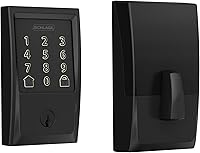
Choose the Schlage Encode Smart WiFi Deadbolt Lock with Century Trim, Matte Black if you want the same built-in Wi-Fi approach with a matte black finish. It supports up to 100 access codes, touchscreen entry, Schlage Home app control, Alexa and Google Home voice control, and a customizable alarm.
This model fits the same standard door thickness and backset ranges as the satin nickel version. It also uses four included AA batteries and includes one physical backup key.
Who should choose Schlage Encode Plus?
Choose the Schlage Encode Plus Smart WiFi Deadbolt Lock, Tap to Open, Aged Bronze if you want built-in Wi-Fi plus Apple Home and Apple home keys. It supports up to 250 access codes, works with Alexa and Google Home, and connects to a 2.4 GHz home Wi-Fi network.
It fits standard doors from 1-3/8 in to 1-3/4 in thick with a 2-3/8 in or 2-3/4 in backset. Its Aged Bronze finish and tap-to-open support make it a different fit from the Century Trim models.
For Apple-focused setup details, see how to use Schlage Encode Plus. You can also compare the features in our Schlage Encode Plus review and check which Schlage smart locks support Matter.
How can you keep a hub-based lock reliable?
Keep the hub powered, the lock within reliable range, and the batteries fresh. A hub-based lock depends on both the lock-to-hub connection and the hub-to-router connection.
Place the hub where it can communicate with the lock without unnecessary walls or metal obstructions. Keep it close enough to the router for a stable network connection, while still serving the lock's location.
Test the lock locally after changing the hub's position or network settings. Check remote access separately because local operation does not prove that the hub can reach the internet.
If you are comparing other Schlage options, our guide to the best Schlage keyless entry door lock can help. For maintenance questions, see how to rekey a smart lock.
What should you choose: Schlage Connect or built-in Wi-Fi?
Choose Schlage Connect with a compatible hub if your home already uses a supported hub and you want the lock inside that system. Choose an Encode model if you prefer built-in Wi-Fi and direct setup through the Schlage Home app.
For a satin nickel finish, consider the Schlage Encode Smart WiFi Deadbolt Lock with Century Trim. For matte black, choose the matching Encode version.
For Apple Home keys and up to 250 access codes, consider Schlage Encode Plus.
If your main question is how to connect Schlage Connect to Wi-Fi, remember the key rule: pair the lock to the hub first, then connect the hub to Wi-Fi. Also compare whether Schlage Encode Plus uses Thread or Z-Wave before choosing between Schlage's connection types.
Frequently asked questions
Can Schlage Connect connect directly to Wi-Fi?
No. Schlage Connect needs a compatible hub to reach your Wi-Fi network and internet services.
Add the lock to the hub through the hub's app, then connect the hub to Wi-Fi.
Direct Wi-Fi pairing applies to different Schlage models, such as Encode, not to the Connect setup described here.
What kind of hub works with Schlage Connect?
Use a hub that supports the lock's wireless connection and includes Schlage Connect in its compatible device list. Compatibility can vary by hub, app, and region, so confirm support before buying or resetting the lock.
The hub must also connect to your home network if you want remote access.
Why is my Schlage Connect not pairing with the hub?
Bring the lock close to the hub, replace weak batteries, and put the hub in its device-add mode before starting pairing. Remove an old lock entry if the device was previously connected elsewhere.
If pairing still fails, follow the lock and hub instructions for a factory reset.
Is Schlage Encode easier to connect than Schlage Connect?
Encode models have built-in Wi-Fi, so they can connect to a home Wi-Fi network through the Schlage Home app without an extra hub. Schlage Connect uses a hub-based setup.
Choose between them based on your existing smart home system, preferred app, and need for direct Wi-Fi access.