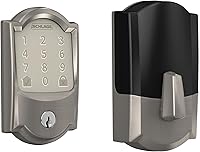
Which Yale Assure Lock Works with Z-Wave?
The Yale Assure Lock 2 with a compatible Z-Wave module is the right choice for a Z-Wave hub. Confirm the lock series, module version and hub support before ordering.
On this page (7 sections)
- Which Yale Assure lock works with Z-Wave?
- How do Yale Assure lock modules affect Z-Wave compatibility?
- What should you check before choosing a Z-Wave configuration?
- Which alternatives help if you don't need Z-Wave?
- What power and wiring issues matter during setup?
- How should you test a Yale Assure Z-Wave setup?
- Is Yale Assure with Z-Wave right for your home?
The Yale Assure Lock 2 with a compatible Z-Wave module is the clearest fit when your home already runs on a Z-Wave hub. It suits households that want the front door to appear alongside lights, sensors and scenes rather than living in a separate app.
The lock itself handles entry, while the module gives it a voice on your network.
Those two pieces need to be checked as a pair. A lock that accepts one module may not accept another, and a hub that supports Z-Wave in general may not support every Yale module.
Reading the model details on the lock and the module list from your hub maker takes a few minutes and can save a return later.
Think about what you want the lock to do once it is connected. Some people mainly want to see whether the door is locked from the hub app.
Others want to tie locking to a bedtime routine or to an arrival scene. Knowing your main use helps you judge which hub features actually matter.
The entry side matters too. A keypad, a touchscreen or a key-free design changes how guests, family and service providers get in.
That choice does not change the wireless protocol, but it shapes daily use and the codes or credentials you will manage.
Door fit should be confirmed early. Measure thickness, backset and bore, and check clearance on the inside of the door.
A lock that is a poor mechanical fit will be frustrating even if the wireless pairing works perfectly.
Battery access and a backup key plan are worth considering before ordering. Decide where spare batteries will live and who in the home knows how to use the backup method.
Small habits like these keep a smart lock feeling simple during a busy week.
This guide walks through the checks in order, from model and module matching to testing after install. For a wider overview of smart door locks, compare protocol, access method and power needs across the whole system.
That broader view can reveal whether Z-Wave is the right path for your home at all.
Which Yale Assure lock works with Z-Wave?
The compatible Yale Assure model and Yale Z-Wave module must match your hub. Start with the exact lock family, then confirm that the module is designed for that lock and supported by your controller.
Treating the lock, module and hub as one system keeps surprises to a minimum.
Yale Assure locks can look similar while using different network options. A touchscreen, key-free design or keypad tells you how you enter the home, not whether the lock communicates through Z-Wave.
The hardware finish and screen type are entry choices. The radio choice lives in the module.
Newer and older generations in the same family may use different modules. That is why a family name alone is not enough detail.
Write down the full model name, any generation notes and the module name from the listing or the lock label. A photo of the label can help when you contact support.
Hub support deserves equal care. Some hubs list Yale as a supported brand, yet only certain models appear in their device library.
Others allow a generic inclusion but limit which lock commands or status reports are available. Check the hub device list rather than relying on a broad brand claim.
Region can also affect pairing. Z-Wave uses different frequencies in different markets, so a module intended for one region may not join a hub set for another.
If you move, buy across borders or use imported hardware, confirm the regional setup on both sides.
Door measurements and power details belong in the same pre-order check. A hub cannot fix a tight strike, a short backset or a door that needs a push to close.
Measure first, then order parts that fit the door you have.
Check these details before ordering:
- The exact Yale Assure lock series and generation
- The module type installed or included
- Your hub's supported Yale devices
- The Z-Wave region used by your hub
- Whether the hub supports the lock features you need
- The door thickness, backset and bore measurements
- The battery and keyway arrangement for your chosen lock
The phrase Yale Assure lock with Z-Wave describes a complete setup, not just a front-door lock. The lock, network module and hub each need to fit the same plan.
When all three align, setup tends to be straightforward and daily use tends to feel predictable.
How do Yale Assure lock modules affect Z-Wave compatibility?
The module determines the wireless connection, so a Yale Assure lock with a different module may not work with your Z-Wave hub. Look for the module name and model information before you remove an existing module or order a replacement.
A module can change how the lock joins your smart-home system. It may also affect remote control, alerts, automation and the way the hub presents the lock in its app.
Don't treat a Bluetooth or Wi-Fi bridge as a Z-Wave module. The August Home Connect Wi-Fi Bridge is designed to connect an August Smart Lock to Wi-Fi and supports Bluetooth, Wi-Fi, Alexa, Google Assistant and Siri.
That makes it a useful comparison for protocol planning, but it isn't a substitute for a Yale Z-Wave module. Choose the connection that matches the hub already running your automations.
If you are comparing Yale network choices, see which Yale smart locks support Matter and whether a Yale Assure lock works with Zigbee.
Can a Yale Assure touchscreen lock use Z-Wave Plus?
A Yale Assure touchscreen lock with Z-Wave Plus can use a compatible Z-Wave Plus module, but the touchscreen itself does not prove that the lock has that radio. Confirm the module and lock model as a pair.
Z-Wave Plus is a protocol generation, not a universal guarantee of compatibility with every hub. Your controller may support Z-Wave devices but still require a specific inclusion method or integration.
Check the hub's device list before installation. If the exact Yale lock or module is missing, contact the hub maker or Yale before buying.
What should you check before choosing a Z-Wave configuration?
The best configuration is the one that matches your hub, door and daily access needs. Check compatibility before comparing finish or keypad style, because a beautiful lock that cannot join your hub creates extra work.
1. Match the lock generation
Write down the exact model name and generation. “Yale Assure” is a product family, while a specific Assure model determines which modules and replacement parts may fit.
The best Yale Assure lock for your home depends on more than wireless protocol. Compare the entry method, door measurements, module options and the way you want to manage codes.
2. Match the Z-Wave module
Confirm that the module is made for your lock series. A module intended for another Yale generation may not fit or may not be recognized after installation.
If the lock already contains a module, identify it before replacing anything. Take a photo of the label and compare its model information with your hub's supported-device list.
3. Match the hub
A Z-Wave hub may support many devices while offering different levels of control for each one. Check whether it supports lock commands, status updates, code management and remote access for the Yale device you plan to use.
Also check the hub's regional frequency. Z-Wave devices are region-specific, so a module bought for one market may not pair correctly with a hub configured for another.
4. Measure the door
Measure the door thickness, backset and bore before ordering. Confirm that the lock hardware fits the existing opening and that the inside escutcheon has enough clearance from trim or nearby glass.
The lock's wireless protocol cannot correct a door-fit problem. A correct measurement at the start helps you avoid choosing a module configuration for hardware that cannot install cleanly.
Which alternatives help if you don't need Z-Wave?
A Wi-Fi lock or bridge may be simpler when you don't already use a Z-Wave hub. Without a hub, there is no controller to match, pair or maintain.
A direct network setup can suit renters, first-time smart lock buyers and homes that mainly want phone access.
The Schlage Encode Smart WiFi Deadbolt Lock uses built-in Wi-Fi and works with the Schlage Home app. Its listed features include remote control, up to 100 access codes, lock history, customizable notifications, Alexa and Google Home support, a touchscreen keypad and four AA batteries.
Those details point to a self-contained system rather than a hub based one.
Trade-offs still apply. Wi-Fi is convenient, yet it depends on your router coverage at the front door.
Battery use can also differ from a hub based protocol, so the four AA batteries need regular attention rather than being forgotten for long stretches.
Setup is usually more direct with built-in Wi-Fi. You connect the lock to your network, join it to the app and test a remote command.
There is no separate module to identify and no hub inclusion step to complete.
That simplicity suits people who want codes for guests and alerts for their own routines. It may suit you less if your home already relies on Z-Wave scenes.
In that case, keeping every device in one system can make automations easier to manage.
This is a different path from Yale Assure with Z-Wave. It may reduce the number of separate network parts, but it also means comparing the Schlage app and Wi-Fi setup with the automations already available in your home.
For another lock comparison, read Schlage Encode vs Encode Plus before choosing a Wi-Fi alternative. If you prefer a lever format, see does Schlage Encode Plus come as a lever lock.
What power and wiring issues matter during setup?
A Yale Assure lock normally needs a suitable battery setup, while the hub handles the wireless connection. Keep the lock's power plan separate from the Z-Wave pairing plan, then test the door movement before adding automations.
Replace or install batteries according to the lock instructions. Keep the bolt aligned with the strike so the motor does not need to fight a tight door.
Complete basic lock setup before pairing it to the hub:
- Confirm the door closes without pushing or pulling.
- Install the lock hardware and the correct Yale module.
- Set the master code and required user codes.
- Test the lock locally.
- Exclude the module from another hub if it was previously paired.
- Include it on the intended Z-Wave hub.
- Test status, lock commands and any alerts.
- Finish the hub automation only after local operation is reliable.
A hardwired transformer is not a general power solution for a Yale Assure lock. The Ring transformer below is made for compatible Ring wired video doorbells and provides 120V AC 60 Hz input with 16V 30VA output.
Keeping these jobs separate prevents a doorbell transformer from being mistaken for a smart-lock accessory. If your project includes entry sensors, our guide to a Z-Wave glass break sensor covers another type of hub device.
How should you test a Yale Assure Z-Wave setup?
Test the physical lock first, then the wireless functions. A hub cannot make a binding bolt safe to use, and a successful pairing does not prove that every command works as expected.
Slow, deliberate testing at the door catches problems while they are still easy to fix.
Start with the door open and run several locking cycles. Watch the bolt travel fully into the strike and listen for strain from the motor.
Check that the keypad responds consistently and that each code you set works as intended.
Close the door and repeat the test from both sides. A door that needs a lift or a push can behave differently when closed.
Adjust the strike or alignment before pairing if the bolt struggles, because wireless setup will not correct a mechanical bind.
Set up basic lock functions before you add hub automations. Confirm the master code, guest codes and any auto-lock timing on the lock itself.
Local control should feel reliable before the hub starts sending commands.
Then test the Z-Wave connection:
- Confirm the hub identifies the correct device
- Send lock commands from the hub app
- Check the reported lock status
- Test a notification or automation
- Try the control from the normal remote-access path
- Remove and replace the batteries only after checking the lock instructions
Watch for delays between a command and the reported status. A short pause can be normal, while a long or missing update may point to range, pairing or hub support issues.
Note what happened so you can describe it clearly if you need help.
Test at the times and places you will actually use the system. Try a bedtime routine from inside, an arrival scene as you approach the door and a status check from outside the home network.
Real routines reveal weak spots better than a single test.
Involve other household members in the trial. Ask them to lock and open with their codes and to check the hub status themselves.
Shared habits formed during testing tend to stick during busy mornings and late nights.
Keep a short record of the tests you ran and the results you saw. That note helps if a code stops working, an alert goes missing or a hub update changes behavior.
It also gives support staff something concrete to work from.
Is Yale Assure with Z-Wave right for your home?
Choose Yale Assure with Z-Wave when you already have a compatible hub and want the lock inside that automation system. That path suits homes where schedules, scenes and door status already live in one place.
Adding the lock there can create routines that feel automatic rather than app driven.
Choose a Wi-Fi lock when direct app access is more important than using your existing Z-Wave controller. A built-in Wi-Fi model can reduce the number of parts between you and the door.
It can also suit a home that has no hub and no plan to add one.
Consider who will use the lock day to day. Family members, guests, cleaners and delivery drivers may all need different access methods.
A keypad code, a phone command or a hub automation each creates a different habit. Pick the method your household is most likely to use without friction.
Think about maintenance as well. Batteries, codes and hub updates all need attention over time.
A setup that looks elegant on paper can become annoying if codes pile up or low battery alerts are ignored. Simple routines and periodic checks help the system stay dependable.
Weigh the door itself before the technology. Thickness, backset, bore and strike alignment decide whether installation is smooth.
Electronics cannot compensate for a door that is hard to close or a bolt that does not sit well.
Before you buy, verify the exact lock model, the compatible Yale module, the hub's device support and your door measurements. If any one of those checks is uncertain, pause and confirm it with Yale or the hub maker.
A short message now can prevent a longer fix later.
For the newest Yale keypad option, compare our Yale Assure Lock 2 Touch review. The right configuration is the one that fits your door and gives your hub the functions you actually plan to use.
When model, module, hub and door all agree, the lock can fade into the background and simply do its job.
Frequently asked questions
Which Yale Assure lock works with Z-Wave?
A Yale Assure lock works with Z-Wave when the lock and its installed Yale module are compatible with your Z-Wave hub. Check the exact Assure series, module type and hub support before buying.
A Wi-Fi or Bluetooth setup does not automatically mean the lock supports Z-Wave.
Can you add Z-Wave to a Yale Assure lock?
Some Yale Assure models use a replaceable network module, but compatibility depends on the lock generation and the module made for it. Do not assume every Yale Assure lock accepts the same module.
Match the lock model and module instructions before installation.
Does Yale Assure Lock 2 work with Z-Wave?
Yale Assure Lock 2 can work with Z-Wave when paired with the compatible Yale Z-Wave module. The hub also needs to support the module and its required features.
Confirm both sides of the connection before choosing a configuration.
Is Z-Wave better than Wi-Fi for a Yale lock?
Z-Wave can suit a home that already uses a compatible smart-home hub, while Wi-Fi can suit buyers who want direct network access through a supported lock setup. Compare hub needs, remote access, battery use and automation support instead of choosing by protocol name alone.