How to Connect Solar Security Cameras to a Monitor
A solar security camera can connect to a monitor through a compatible hub, recorder, computer, or viewing app. Check the camera's video output and network support before choosing the display path.
On this page (7 sections)
- Can you connect a solar security camera directly to a monitor?
- What are the main ways to show solar camera video on a monitor?
- Which solar cameras fit different monitor setups?
- How do you connect a solar camera to a monitor through a hub?
- What should you check before buying a monitor?
- How do you improve a solar camera monitor setup?
- Is a solar security camera with monitor worth it?
A solar security camera with a monitor usually needs an extra viewing path. The camera may send video to a matching hub, recorder, computer, or app, while the monitor displays the signal from that device.
Solar power only handles the camera's energy needs. It doesn't automatically create a wired video output, so check the camera's connection method before choosing a monitor.
Can you connect a solar security camera directly to a monitor?
Most wireless solar cameras don't connect directly to a monitor. They typically use Wi-Fi and an app, while the monitor connects to a computer, hub, recorder, or streaming device.
A direct connection is possible only when the camera and display share a supported video connection. Look for an actual HDMI, VGA, USB video, network-streaming, or manufacturer-specific output.
A USB charging cable normally supplies power or transfers data, but it doesn't automatically send live video to a monitor.
For background on the camera type, read What Is a Solar Security Camera, and How It Is Used?. The key point is that the solar panel and the viewing connection are separate parts of the system.
What are the main ways to show solar camera video on a monitor?
You can show solar camera video through a compatible hub, recorder, computer, or supported smart display system. The right choice depends on whether you want live viewing, recording, remote access, or a simple screen.
Use a camera hub with a monitor
A compatible hub is often the cleanest route for a solar security camera with monitor. The camera connects to the hub over its supported wireless connection, and the hub connects to the monitor through an available display output.
This approach can keep the camera's wireless connection separate from the monitor cable. It may also give you one place to manage several cameras, but the camera and hub must be designed to work together.
Use a recorder with a monitor
A network video recorder or digital video recorder can display camera feeds when it supports the camera's protocol and connection type. The recorder then sends the picture to the monitor through its own video output.
Don't assume any recorder will accept any Wi-Fi camera. Confirm the camera brand, supported protocol, network requirements, and whether the recorder supports wireless cameras before you buy one.
Use a computer as the bridge
A computer can act as the middle device when the camera has a compatible desktop client, web interface, or supported stream. Connect the computer to the monitor, then open the camera software on the computer.
This method can work well when you already have a suitable computer near the display. It also adds another device that must remain powered and connected, so it may not suit a simple wall-mounted monitor.
Use a supported app or smart display
Some cameras are designed primarily for phone apps or voice assistant displays. That can be useful for quick checks, but the monitor must support the same app or ecosystem.
Before choosing this route, compare Can Security Cameras Work Without WiFi, and Why It Matters?. A camera that relies on Wi-Fi may not offer the same viewing options during an internet or router failure.
Which solar cameras fit different monitor setups?
The best match depends on the camera's resolution, wireless band, storage method, and supported viewing equipment. These three options use different combinations of wireless viewing, app control, and local storage.
The REOLINK Argus PT Ultra First 4K Solar suits a reader who wants high-resolution video and broad camera movement in a Reolink-based setup. It uses 2.4 GHz and 5 GHz Wi-Fi, supports smartphone viewing, and works with a free Reolink app or client.
Its 355° pan and 140° tilt can help cover a wide area, but the camera does not support continuous recording or NAS and RTSP streaming.
The camera records events to a separately purchased microSD card, with support up to 512 GB. That makes it useful when you want local event playback, but it doesn't turn the camera into a direct HDMI source.
A computer or compatible Reolink viewing path is still needed for a monitor.
For readers comparing brighter outdoor coverage, see Best Solar Security Cameras with Lights. For resolution-focused choices, Best Solar 4K Security Cameras covers the 4K category.
The aosu 3K 5MP Solar Security Camera Wireless suits users who want 360° coverage, smart tracking, and app-based viewing over 2.4 GHz Wi-Fi. It supports Alexa and Google Assistant, includes spotlights, and uses an app for control.
This camera records motion events rather than continuous 24/7 video. It supports an 8–128 GB microSD card or cloud storage with a subscription and offers a free 30-day trial.
For a monitor, plan on using a compatible smart display, computer, or other supported bridge instead of connecting the camera directly.
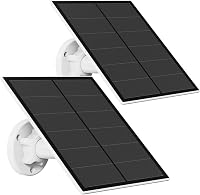
The SEHMUA 2K Solar Security Cameras Wireless Outdoor, 2 Pack suits readers who need two outdoor cameras with 360° views, 2.4 GHz Wi-Fi, app control, and local storage options. The system supports wall or ceiling mounting and includes a removable solar panel.
The cameras use 2.4 GHz Wi-Fi only, so a monitor setup must support that network path. They also use motion recording rather than continuous recording.
A microSD card is not included, and optional cloud storage is available with a 30-day trial.
For a different camera power method, compare What Is a Plug in Security Camera, and What It Does?. For indoor viewing without Wi-Fi, see Best Indoor Security Cameras Without WiFi.
How do you connect a solar camera to a monitor through a hub?
Connect the camera to its compatible hub, then connect the hub's video output to the monitor. The exact menu names and cables vary by brand.
- Place the camera where its solar panel receives useful sunlight.
- Install the camera and complete its setup in the manufacturer's app.
- Pair the camera with its supported hub or recorder.
- Connect the hub or recorder to the monitor with its supported display cable.
- Select the correct input on the monitor.
- Confirm live view, motion alerts, and recording settings.
Keep the hub near a reliable network connection if its setup requires one. A monitor can show the picture, but it doesn't replace the camera's wireless network or the hub's power supply.
If you are considering a television display, read How to Connect a Wired Security Camera to a TV. Wired camera systems and wireless solar systems can use very different connection paths.
What should you check before buying a monitor?
Check the monitor inputs, camera viewing method, Wi-Fi band, and any required hub or recorder. These four checks prevent most compatibility problems.
A monitor with HDMI can display a signal from a compatible recorder or computer, but HDMI alone doesn't make a Wi-Fi camera work. If the camera uses an app, you need a device that can run that app or pass its video to the monitor.
Check whether the camera uses 2.4 GHz, 5 GHz, or both. The REOLINK model supports both bands, while the aosu and SEHMUA options described here use 2.4 GHz Wi-Fi.
Also check storage. Event recording to microSD may be enough for basic playback, while a recorder or hub may be better if you want several cameras on one screen.
Confirm card limits and whether the card is included before installation.
How do you improve a solar camera monitor setup?
Place the monitor and bridge device where you can reach them safely, while keeping the camera's solar panel clear. The display location and camera location don't have to be the same.
Use a stable stand or wall mount for the monitor according to its instructions. Keep power cords away from wet areas, and don't route cables where they can be pulled or pinched.
Adjust the camera's motion zones and alert settings after the live view works. This matters because solar cameras in this group are designed around motion events rather than constant recording.
Clean the solar panel as needed with a soft, dry method suitable for its surface. Avoid changing the camera's mounting angle without checking the viewing area again.
Is a solar security camera with monitor worth it?
A monitor setup is useful when you want a larger live view, a shared security screen, or several cameras shown in one place. The best route is usually a compatible hub or recorder, not a direct camera-to-monitor cable.
Choose the REOLINK Argus PT Ultra First 4K Solar for 4K 8MP video and dual-band Wi-Fi. Choose aosu for 360° coverage and smart tracking on 2.4 GHz Wi-Fi.
Choose the SEHMUA 2-pack when two 2K cameras and local storage up to 128 GB fit your plan.
Before ordering, confirm the monitor input and the camera's supported viewing method. If you want a Reolink-focused comparison, see Best Reolink Solar Security Cameras.
Frequently asked questions
Can a solar security camera connect directly to a monitor?
Usually, not directly. Many solar cameras send video over Wi-Fi to an app, hub, recorder, or computer instead of providing an HDMI or VGA output.
Check the exact camera, monitor, and recorder connections before buying cables or adapters.
Do solar security cameras need Wi-Fi to show video on a monitor?
Some do, especially cameras that use an app or network stream. A camera may work without home Wi-Fi when paired with a dedicated hub or recorder, but the display path still needs compatible hardware.
Check whether the camera supports local viewing, a hub, or a recorder.
Can I connect a solar camera to a TV instead of a monitor?
Yes, if the camera system or recorder provides a compatible HDMI or other video output. The TV becomes the display, while the camera still needs power, network access, or a hub according to its design.
A Wi-Fi camera usually cannot connect to a TV by itself.
Which solar camera is easiest to use with a monitor?
A camera with a matching hub or recorder is usually the simplest choice for monitor viewing. App-only cameras may require a computer or supported streaming device.
Confirm the camera's viewing method, Wi-Fi band, storage options, and output connections first.