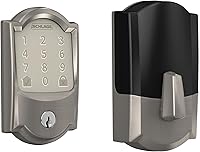
How to Factory Reset a Kwikset Halo Touchscreen Lock
To do a Kwikset Halo touchscreen factory reset, remove the interior cover, press and hold the program button for 30 seconds until the status LED flashes red, then release and press once more. The lock returns to factory settings so you can add codes and set it up again.
On this page (8 sections)
- When should you reset a Kwikset Halo Touchscreen?
- What do you need before a Kwikset Halo touchscreen factory reset?
- How do you perform the basic Kwikset Halo touchscreen factory reset?
- What if the reset does not seem to work?
- How do you set a new master code and add user codes after the reset?
- How do you reconnect the lock in the app after a reset?
- What should you check if parts are missing or worn, or if you consider other hardware?
- How do you know the reset and setup are complete?
To do a Kwikset Halo touchscreen factory reset, hold the program button for 30 seconds until the LED flashes red, release it, and press it once more. That sequence clears codes and settings so the lock is ready for a new owner or a fresh setup.
You should reset the lock before transferring ownership, after moving into a new home, or when you want to remove every code and pairing from a prior setup. A reset is also a clean start when the lock is paired to the wrong account or will not accept new codes.
When should you reset a Kwikset Halo Touchscreen?
You should reset it before handing over the home, after a move, or when codes from a prior user must be removed. That includes a home sale, a rental turnover, or a used lock.
A reset also clears stale settings the app cannot remove, such as codes left by a prior owner who deleted the app.
Do not reset for a single failed code. Check batteries, the app connection, and the key first, and delete and re-add that code if needed.
Once you reset, old codes stop working and the app pairing drops. Have the physical key, fresh batteries, and your phone ready before you start.
What do you need before a Kwikset Halo touchscreen factory reset?
You need the physical key, fresh AA batteries, a small tool for the interior cover, and the Kwikset app on your phone. Having them ready prevents a half-finished reset with no backup plan.
Get the key from the prior owner or landlord and test it before you reset. Keep it with you during the whole process, in case a code fails after setup.
Check the battery compartment while the cover is off. Low batteries can cause weak LED signals or a reset that starts but does not finish, so replace all batteries at once.
Download the Kwikset app, sign in, and turn on Bluetooth and Wi-Fi. Note your Wi-Fi name and password, and keep the interior cover off until setup is complete.
How do you perform the basic Kwikset Halo touchscreen factory reset?
The basic reset uses the program button on the interior assembly, a 30-second hold, and one short press after the red flash. Do this with the lock installed, and keep the key with you.
Remove the interior cover ring to reveal the program button. Press and hold it with a fingertip or pen tip for a full 30 seconds.
The status LED should flash red after about 30 seconds. Release the button right away when you see that flash.
Press the program button one more time. The LED should flash red again as the lock returns to factory defaults.
If it never turns red, try again with fresh batteries and time the hold with your phone clock.
What if the reset does not seem to work?
If the reset fails, check power, reseat the exterior touchscreen, and repeat the exact hold and press sequence. Most failures come from low batteries or a loose connection between the units.
Press the touchscreen to wake it. If the numbers light dimly or not at all, replace all batteries at once and check that each sits in the right direction.
Remove the exterior unit and interior assembly, then refit them slowly so the cable and alignment line up. Do not force the units together, as reseating can fix a loose tailpiece connection.
Repeat the 30-second hold and single press, watching for the red flash. If it still fails, retract the bolt with the key and try again, and check that the interior cover is fully removed.
How do you set a new master code and add user codes after the reset?
After the reset, press the program button once, enter a new master code of 4 to 8 digits, and press the lock button to save it. Wait for a solid green LED before entering the code and a green flash after saving.
Do not reuse the old code, since the master code controls adding and deleting user codes. Write it down and store it away from the door, then test it from outside and test the key from both sides.
To add a user code, press the program button once, enter the master code, and press the lock button. Then enter the new user code, press the lock button again, and test it before adding the next code.
How do you reconnect the lock in the app after a reset?
Reconnect the lock in the Kwikset app as a new device. The reset removed the prior pairing, so the app treats it as new.
Open the app, add a device, and select your Halo model. Keep your phone close, since Bluetooth connects first before Wi-Fi takes over.
Enter your Wi-Fi name and password, using 2.4 GHz if both bands are available. Name the lock by door and test lock and open in the app while at the door.
If pairing fails, move closer, check Wi-Fi strength, and restart the app.
What should you check if parts are missing or worn, or if you consider other hardware?
Check the interior cover, exterior touchscreen, deadbolt, strike plate, and key before you finish setup. A reset cannot fix a missing cover, a bent deadbolt, or a key that does not turn.
Look at the strike plate first. If the bolt scuffs or binds, adjust the plate or door alignment before you rely on motor locking.
Inspect the touchscreen for cracks and the cover for a snug fit. If a part is missing, check Kwikset Halo replacement parts for the correct hardware.
Also check that door thickness and backset match the lock, and measure before you order parts. If you plan to match the lock with new hardware, review the best Kwikset Halo handle options for style and fit.
Is a Wi-Fi bridge a good backup for remote access?
A Wi-Fi bridge helps when you want remote lock control without relying on the lock's built-in Wi-Fi alone. It can give you another path for commands and alerts, but it does not replace a factory reset or fix a weak door connection.
The August Home Connect Wi-Fi Bridge connects an August smart lock to Wi-Fi for remote lock and open, alerts, and voice control through Alexa, Google Assistant, or Siri. It needs a North American outlet with 110 to 240 volts and a phone running iOS 9.0 or higher or Android 5.0 or higher.
This bridge is for August locks, not Kwikset Halo locks. Buy it only if you also use an August lock and want remote access through that system.
Can a different smart deadbolt help after a move?
A different deadbolt helps when the Halo reset works but you want built-in Wi-Fi and app control in a new lock. Compare features and door fit before you switch, because the new lock still needs a standard door setup.
The Schlage Encode Smart WiFi Deadbolt Lock with Camelot Trim in Satin Nickel connects directly to your Wi-Fi and works with the Schlage Home app. It supports up to 100 access codes, lock history, notifications, auto-lock, and voice control with Alexa or Google Home.
It fits standard doors from 1-3/8 in to 1-3/4 in thick with a 2-3/8 in or 2-3/4 in backset. It runs on four AA batteries, includes one backup key, and installs with a screwdriver and no hardwiring.
What should you do about door power and video doorbells?
Door power matters when a video doorbell shares space with a smart lock but does not power the lock. A Halo lock runs on batteries, so a doorbell transformer will not charge it or fix a reset problem.
The Hardwired Transformer for Ring Wired Video Doorbells replaces an underpowered North American doorbell transformer. It takes 120V AC 60 Hz input and gives 16V 30VA output for supported Ring wired doorbell models, and it comes with tools for installation.
Buy it only for a Ring wired doorbell that needs more power. It will not help a Kwikset Halo lock, and it should not be wired into a lock.
How do you know the reset and setup are complete?
The reset is complete when the LED signals match, a new master code works, user codes pass, and the app controls the lock. Check each item in that order before you replace the cover.
Stand outside and lock with the touchscreen, then open with the master code. Repeat with each user code, then lock and open from the app.
Each method should move the bolt fully without grinding. Check the key last from both sides.
Avoid a short hold or pressing again before the red flash, as that can leave old codes in place. Do not reset without the key, reuse the old master code, or add many codes before testing one, since that hides which step failed.
Do not ignore a binding deadbolt, as a reset clears electronics but does not fix alignment or a warped door. Fix alignment first, then test the motor cycle again.
Our guide to how to lock a Kwikset smart lock covers daily locking habits once codes are set. If you like a darker finish, our guide on Kwikset Halo in Venetian Bronze can help you match the lock to the room.
For model questions, our guide on Kwikset Halo Matter support can clarify which versions work with Matter. If you want a broader view before you buy more hardware, see smart door locks for a buying guide.
You can also compare models in our guide to the best Kwikset smart deadbolt locks.
For this Kwikset Halo touchscreen factory reset, reset, set a new master code, add codes one at a time, pair the app, and test the key before you finish.
Frequently asked questions
What does a factory reset do on a Kwikset Halo Touchscreen?
It clears user codes, app pairing, and custom settings and returns the lock to its original factory state. You will need to set a new master code, add user codes, and reconnect the lock in the app after the reset is complete.
Do I need the physical key after a reset?
Keep the physical key with you during the reset so you can test manual entry on both sides. The key does not change, but testing it confirms the deadbolt still extends and retracts correctly before you rely on codes.
Can I reset the lock without taking it off the door?
Yes. The standard reset uses the program button under the interior cover, so the lock can stay installed.
Remove the cover ring, hold the button, and follow the LED signals while the deadbolt stays in the door.
What should I do if the LED does not flash?
Check battery power first and replace batteries if the touchscreen is dim or unresponsive. Then repeat the hold time exactly, release at the red flash, and press once more.
If it still fails, remove and refit the exterior unit and interior assembly.