How to Lock a Kwikset Smart Lock
To lock a Kwikset smart lock, your method depends on the model: press the lock button or enter a code on a touchscreen, tap Lock in the app, turn the interior thumbturn, or use the physical key. A deadbolt is locked when the bolt fully extends into the frame.
On this page (8 sections)
- How do you lock a Kwikset smart lock from outside with a touchscreen?
- How do you lock a Kwikset smart lock with a keypad code?
- How do you lock a Kwikset smart lock from inside the house?
- How does auto-lock work on a Kwikset smart lock?
- What should you do if your Kwikset smart lock will not lock?
- How do you lock a Kwikset smart lock when the door does not line up?
- How do you keep a Kwikset smart lock locking reliably?
- How do you choose the best locking method for your daily routine?
To lock a Kwikset smart lock, use the control your model has: touch the lock symbol on a touchscreen, press Lock in the app, turn the inside thumbturn, or use the backup key. Confirm the bolt is fully thrown before you walk away.
We compared the common Kwikset controls so you can match the steps to your exact lock. The right choice depends on whether you have a touchscreen model, a keypad model, a model with a thumbturn, or a version tied to an app or home hub.
How do you lock a Kwikset smart lock from outside with a touchscreen?
On a touchscreen model, locking from outside is usually a single touch. Place your palm over the screen to wake it, then tap the lock icon when it appears.
Some Kwikset touchscreen locks let you lock with one tap on the Kwikset logo or lock symbol. Others need a code first, so check your model's manual for the exact sequence.
Wait for the lock to respond. You should see a visual sign, hear a beep, or feel the bolt move, and the response may differ by model.
What should you check after a touchscreen lock?
Check that the bolt is fully extended into the door frame before you leave. Pull gently on the door to confirm it does not move, but do not force the bolt.
If the screen wakes but the bolt does not move, the batteries may be low or the lock may be jammed. Replace the batteries first, then test again with the door open.
If you need to start over on a Halo touchscreen, our guide to kwikset halo touchscreen factory reset can help you return the lock to its original setup.
How do you lock a Kwikset smart lock with a keypad code?
Keypad models lock when you enter a valid code and the lock accepts it. Type the code slowly, and wait for the bolt to throw.
Many Kwikset keypad locks can also lock with a single press of the lock button, without a code. That shortcut is handy when you are leaving and do not want to type.
Make sure the code is one you created in the app or at the lock. A factory code may still be active if the lock was never programmed, so change it during setup.
How do you lock a Kwikset smart lock with the app?
Open the Kwikset app, select your lock, and tap Lock. Wait for the app to show the locked status, not just the command.
App control only works when the lock has a working connection. Wi-Fi models need your home network, and Bluetooth models need your phone nearby.
If the app shows a delay, check your Wi-Fi signal near the door. A weak signal is a common reason a remote lock command takes longer than expected.
For a broader look at models and features, see our guide to smart door locks before you add a new lock to your home.
How do you lock a Kwikset smart lock from inside the house?
From inside, the thumbturn is the fastest option on most models. Turn it so the bolt extends fully, and you will get a direct mechanical feel for the lock.
Some models have a push button on the interior panel instead of a thumbturn. Press it once and listen for the bolt to throw.
Turning the thumbturn also works if the batteries are dead. That is why Kwikset keeps a manual interior control on most deadbolts.
Can you lock a Kwikset smart lock with a physical key?
Yes, most Kwikset smart deadbolts have a physical key cylinder on the outside. Insert the key, turn it to throw the bolt, and remove the key.
Keep the key in a safe place, not with the lock's batteries or manual. The key is your backup when the battery is dead and the phone is not nearby.
Test the key after install and after any battery change. It should turn smoothly in both directions without grinding.
If the key turns but the bolt sticks, the door alignment may be the problem. See the section below on alignment before you call for service.
How does auto-lock work on a Kwikset smart lock?
Auto-lock throws the bolt for you after a set delay. You can often set the delay in the app, or turn the feature off if you prefer manual control.
Auto-lock is useful when you carry bags or children and forget to lock up. It is also useful for a rental or a busy household with many walk-throughs.
The delay does not start until the door closes and the lock registers the closed state. If the door is ajar, the lock may not start the timer.
Auto-lock does not replace a final check. When you leave for the day, check the door once and confirm the bolt is in.
We checked the specs for similar Wi-Fi deadbolts to see how other brands handle this step. The Schlage Encode, for example, lets you pick a time delay or turn auto-lock off completely.
What should you do if your Kwikset smart lock will not lock?
Start with the simplest checks. Replace the batteries, clean the touchscreen, and test the lock with the door open.
A dead battery is the most common cause. Low batteries can cause weak motor movement, missed beeps, or a screen that lights but does not respond.
Next, check for a jam. Open the door and try to lock it.
If it works with the door open but not closed, the door or frame is misaligned.
How do you fix a Kwikset lock that beeps but does not throw?
A beep without movement can mean low power, a motor issue, or a bolt under load. Replace the batteries with a fresh set and try again.
If the bolt still stalls, remove the interior cover and check the tailpiece connection. The tailpiece links the motor to the bolt, and a loose fit can cause trouble.
Do not force the bolt with your hand. Forcing it can damage the gears and turn a simple battery fix into a repair.
If you suspect a worn part, our guide to kwikset halo replacement parts can help you match the part to your model.
How do you lock a Kwikset smart lock when the door does not line up?
A bolt that hits the frame will not throw fully. That is a sign the door has shifted, the strike plate is off, or the latch is misaligned.
Close the door and look at where the bolt meets the frame. If it scrapes the top or bottom of the strike hole, the door needs adjustment.
You can often fix a small offset by deepening or widening the strike hole, or by shifting the strike plate a small amount. Make small changes and test after each one.
Do not wear the bolt down to make it fit. A tight fit is a sign you should adjust the door, not force the lock.
For handle alignment on Halo models, see our picks for the best kwikset halo handle to match your lock with the right lever or knob.
If the door itself is warped, a locksmith can adjust the hinges or frame. That fix often costs less than replacing a lock that was never the real problem.
How do you keep a Kwikset smart lock locking reliably?
Keep the batteries fresh, the touchscreen clean, and the bolt moving freely. A simple routine once a month prevents most problems.
Wipe the touchscreen with a dry cloth. Oil and fingerprints can make taps less responsive, especially in cold weather.
Check the bolt once a month. It should slide in and out with a firm, steady motion and no grinding.
Replace batteries before they run out. Many models warn you when power is low, and that warning is your cue to act.
Keep the app updated and your Wi-Fi password current. A password change at home will break remote control until you reconnect the lock.
Which finish and handle should you pair with a Kwikset lock?
Finish and handle choice affect how the lock feels and how it matches your door. Pick a finish that matches your other hardware or contrasts on purpose.
The kwikset halo venetian bronze option is a good example of a finish choice that changes the look of the whole door. Measure your door before you order a handle set.
A lever is easier to use with full hands, while a knob suits a more formal entry. Match the handle to how your household uses the door each day.
How do you choose the best locking method for your daily routine?
Pick the method you will use most often, then set the others as backup. For many homes, that means touchscreen or keypad for daily use, thumbturn for inside, and key for emergencies.
If you want remote control, choose a Wi-Fi model or add a hub. If you prefer not to rely on your phone, a code and key combo may suit you better.
Our roundup of the best kwikset smart deadbolt options can help you compare models before you buy. Match the model to your door thickness and backset first.
For newer lock tech, our post on smart lock uwb explains how ultra-wideband changes phone-based entry. That tech is different from Kwikset's current approach, but it shows where entry methods are heading.
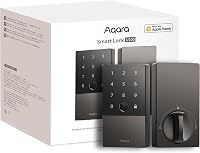
If you are comparing brands, our aqara smart lock u200 review covers a different system with its own locking controls. That review can help you decide if you want to stay with Kwikset or try another setup.
To lock a Kwikset smart lock with confidence, use the control built for your model, wait for the bolt to fully throw, and check the door before you leave. That simple habit works for touchscreen, keypad, app, thumbturn, and key methods alike.