Does an NVR Need Internet, and Why It Matters? Quick Fixes
On this page (7 sections)
Does an NVR need internet? You can also review whether you need an NVR for your IP camera setup. The short answer is no, your NVR doesn’t always need an internet connection to record video. It can function perfectly well locally, storing footage on its hard drive. But, you will lose remote viewing and mobile alerts without an internet connection.
Think of it this way: your NVR is like a local DVR for your security cameras. It records and plays back video just fine on its own. However, connecting it to the internet is what allows you to access your cameras from anywhere in the world. Without it, you’re stuck viewing footage only when you’re physically at the NVR’s location.
- Your NVR records video locally without internet.
- Internet is required for remote viewing on phones or computers.
- Mobile alerts also depend on an internet connection.
- Basic recording and playback work fine offline.
- You’ll miss out on advanced features if offline.
Let’s walk through exactly why you might need internet for your NVR, and what happens when you don’t have it. We’ll also cover some quick fixes if you’re having trouble.
Does Your NVR Really Need to Be Online?
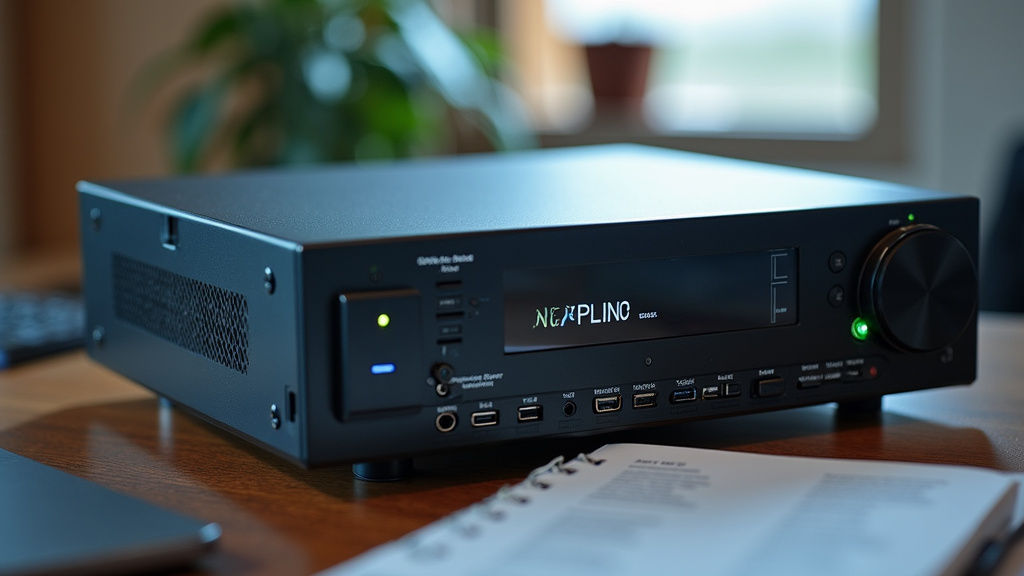
This is a common question for anyone setting up a home security system. The direct answer is no, your NVR (Network Video Recorder) does not strictly require an internet connection to perform its primary function: recording video from your cameras. It’s designed to capture and store footage locally on its hard drive. Think of your NVR as a DVR for your security cameras, working perfectly well in its own bubble.
However, to get the most out of your system, especially for convenience and advanced features, internet connectivity becomes very important. You’ll miss out on quite a bit if your NVR stays offline. We’re going to break down exactly what works and what doesn’t without an internet connection, and why you might want to get it hooked up.
Offline NVR: What Still Works?
When your NVR is not connected to the internet, it still functions as a local recording device. You can absolutely rely on it for the basics of surveillance. Here’s what you can expect:
Local Recording and Storage
Your NVR’s main job is to record. It will continue to record video streams from all connected cameras as long as they are properly linked to the NVR. This footage is saved onto the NVR’s internal hard drive. The recording schedule you set – continuous, motion-detection, or timed – will still be followed. So, rest assured, your cameras are still capturing events even without an internet connection.
Playback on a Local Monitor
You can watch live feeds and review recorded footage directly from your NVR. This requires connecting a monitor (like a TV or computer monitor) to the NVR’s video output port, usually HDMI or VGA. You’ll use a mouse connected to the NVR to navigate the menus, select cameras, and scrub through recordings. This is your go-to method for reviewing incidents when you’re physically present at the location where the NVR is installed. It’s like using a DVD player connected to your TV – it works perfectly fine without the internet.
Basic System Management
You can still perform many essential configuration tasks directly on the NVR unit when it’s offline. This includes adjusting camera settings (like image quality or motion detection zones), formatting the hard drive, and managing user accounts. These operations are handled through the NVR’s on-screen interface, so the internet is not a requirement for these immediate system adjustments.
Why Internet Connectivity is a Game-Changer for Your NVR
While an NVR functions locally, connecting it to the internet unlocks its true potential. It transforms your local recording device into a powerful, accessible security hub. Let’s look at the key benefits you gain by going online.
Remote Viewing From Anywhere
This is arguably the biggest advantage of an internet-connected NVR. You can access your live camera feeds and recorded video from virtually anywhere in the world. All you need is a smartphone, tablet, or computer with an internet connection. This allows you to check in on your property while you’re at work, on vacation, or even just running errands. It provides peace of mind, knowing you can always see what’s happening.
Manufacturers typically provide dedicated mobile apps or software for this purpose. You’ll usually need to create an account and link your NVR to it. Once set up, you can log in remotely and view your cameras in real-time. Many experts say this remote access capability is a primary reason people choose NVR systems today (Source: Security Industry Association).
Receive Mobile Alerts and Notifications
An internet connection allows your NVR to send you important notifications directly to your phone or email. If motion is detected by a camera, or if the NVR detects an issue like a camera disconnection or hard drive failure, it can send an alert. This real-time notification system means you don’t have to constantly check your cameras. You’ll be alerted to potential security events as they happen, allowing for a quicker response.
These alerts can be configured based on your preferences. For instance, you might only want to receive motion alerts during specific hours or for certain cameras. This proactive approach to security is a major benefit of having your NVR online and properly configured.
Remote Firmware Updates
Manufacturers often release firmware updates for NVRs. These updates can include new features, performance improvements, and critical security patches. When your NVR is connected to the internet, it can automatically download and install these updates, or prompt you to do so. This helps keep your system running smoothly and securely without you having to manually download and install files.
Keeping your firmware up-to-date is important for maintaining the best performance and protecting your system against newly discovered vulnerabilities. Many security professionals recommend keeping all connected devices updated (Source: Cybersecurity and Infrastructure Security Agency).
Cloud Storage and Backup Options
Some NVR systems offer or integrate with cloud storage services. While your NVR records primarily to its local hard drive, you can use an internet connection to back up critical footage to the cloud. This provides an extra layer of security in case the NVR itself is stolen or damaged. Cloud storage ensures your important video evidence is safely stored off-site and can be accessed even if your physical system is compromised.
Integration with Smart Home Systems
For those with smart homes, an internet connection enables your NVR to potentially integrate with other smart devices. This could mean triggering lights when motion is detected or linking with voice assistants. While not a primary function for all NVRs, it’s an expanding area that requires online connectivity for communication between devices and services.
What Happens If Your NVR Loses Internet?
If your NVR is used to being online and then loses its connection, you’ll notice a few things immediately. The most common issues are related to remote access and notifications. Let’s clarify what stops working.
Remote Viewing and App Access Fails
The moment your internet goes down, your ability to view cameras remotely will cease. Your NVR can no longer communicate with the outside world. This means your mobile app or desktop software will likely show an “offline” status for your NVR. You won’t be able to see live feeds or access recorded footage from outside your local network. This is a direct consequence of the severed connection required for remote access protocols.
No Mobile Alerts
Any alerts that your NVR would normally send to your phone or email will stop. This includes motion detection alerts, camera loss notifications, or system error messages. The NVR cannot reach the internet servers that facilitate these push notifications or emails. You will effectively be “flying blind” in terms of immediate alerts, relying only on checking the system locally.
Potential Issues with Time Synchronization
Some NVRs use Network Time Protocol (NTP) servers on the internet to keep their internal clocks accurate. If your NVR loses internet, it might lose its ability to synchronize its time. Over time, the recorded timestamps on your footage could become inaccurate, which can be problematic when trying to establish a timeline of events. You might need to manually set the time if this becomes an issue.
Quick Fixes for Common NVR Internet Issues
If your NVR seems to have lost its internet connection, or if you’re having trouble getting it online, don’t panic! Many issues are straightforward to resolve. Here are some common fixes to try:
Check Physical Connections
The simplest solutions are often overlooked. Ensure the Ethernet cable connecting your NVR to your router or network switch is securely plugged in at both ends. Try a different Ethernet cable if possible, as cables can sometimes fail. Also, check that the cable is plugged into the correct port on your router (usually a LAN port, not the WAN port which is for the internet modem).
Restart Your Network Equipment
A quick reboot of your network can solve many connectivity problems. Unplug your modem and router from power for about 30 seconds. Then, plug the modem back in and wait for it to fully boot up (all lights stable). After that, plug in your router and wait for it to boot up. Finally, restart your NVR itself by powering it off and on. This process ensures all network devices refresh their connections.
Verify Router and NVR IP Settings
Sometimes, there can be an IP address conflict or an issue with how the NVR is obtaining an IP address from your router. You can try setting a static IP address for your NVR within your router’s settings. This assigns a permanent IP address to your NVR, preventing potential conflicts. Consult your NVR’s manual for the recommended IP address range and subnet mask, and your router’s manual for instructions on how to set a static IP or DHCP reservation.
If your NVR is set to obtain an IP address automatically via DHCP, ensure that your router’s DHCP server is enabled and has available IP addresses to assign. Many network experts recommend configuring static IPs for network-attached devices like NVRs for stability (Source: Cisco Systems).
Update NVR Firmware
While this sounds counterintuitive if you can’t connect to the internet, sometimes outdated firmware can cause connectivity issues. If you previously downloaded firmware updates, you might be able to manually update the firmware via a USB drive. Check your NVR manufacturer’s support website for the latest firmware and instructions. This can resolve bugs that were preventing internet access.
Test Internet Connection Directly
To rule out issues with the NVR itself, try connecting a laptop or other device to the exact same network port that the NVR is using. If that device can access the internet, the problem likely lies with the NVR’s network settings or hardware. If the test device also cannot connect, the issue is with your router, modem, or internet service itself.
Factory Reset as a Last Resort
If all else fails, a factory reset of your NVR might be necessary. Be aware that this will erase all your current settings, including recording schedules, camera configurations, and network settings. You will need to reconfigure the entire system from scratch. This should only be done after exhausting all other troubleshooting steps and ensuring you have backed up any critical recorded footage you might want to keep.
Here’s a quick checklist to remember when troubleshooting:
- Double-check all physical cable connections.
- Power cycle your modem, router, and NVR.
- Confirm your router’s internet connection is active.
- Verify NVR network settings (DHCP or Static IP).
- Test internet access with another device on the same port.
- Consider a factory reset if other steps fail.
Conclusion
Your NVR is a reliable recorder, even without the internet. It will capture footage and let you review it locally. But to get the most out of your system, an internet connection is key. Remote viewing and instant alerts transform your security setup. Think of it as adding your NVR to your smart home. If you’re facing connection issues, start with simple checks like cables and reboots. Don’t hesitate to try setting a static IP or updating firmware.
Take a moment to check your NVR’s internet status after reading this. If it’s offline, consider the benefits of getting it back online for full peace of mind.
Frequently Asked Questions
Can I still see my NVR cameras if my internet is out?
Yes, you can still see your NVR cameras if your internet is out, but only if you are physically present at the location of the NVR. You’ll need to connect a monitor and mouse directly to the NVR to view live feeds or recorded footage. Remote viewing via phone or computer will not be possible.
Will motion alerts work if my NVR is not connected to the internet?
No, motion alerts will not work if your NVR is not connected to the internet. These alerts are sent out from the NVR through internet servers to your phone or email. Without an internet connection, the NVR cannot send these notifications.
How do I get my NVR to connect to the internet?
To connect your NVR to the internet, you typically need to plug an Ethernet cable from the NVR into your router or a network switch. You may then need to configure network settings on the NVR itself, such as obtaining an IP address automatically (DHCP) or assigning a static IP address. Consult your NVR’s manual for specific instructions.
What is a static IP address for an NVR, and do I need one?
A static IP address is a fixed address for your NVR on your network. While your NVR can often get an IP address automatically from your router (DHCP), a static IP can help ensure a stable connection, especially for remote access. Many experts recommend using static IPs for network devices like NVRs to avoid potential conflicts.
Is it safe to connect my NVR to the internet?
Connecting your NVR to the internet is generally safe when proper security measures are taken. Ensure your NVR’s firmware is up-to-date, use strong, unique passwords for your NVR and your router, and consider disabling features you don’t use. Reputable manufacturers provide security updates to protect against common threats.