What Is a DVR, and How Does It Work for Every Home?
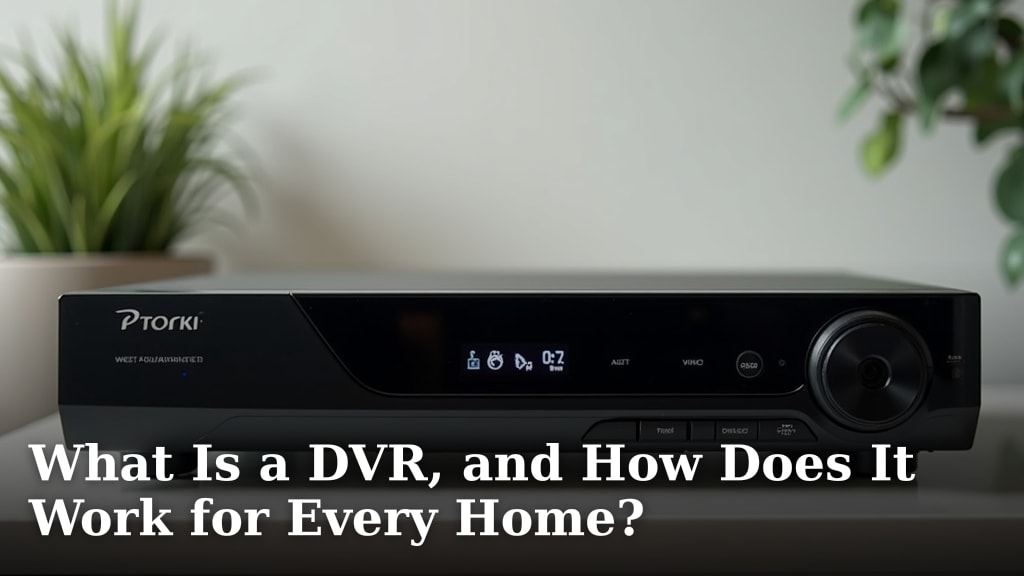
A DVR, or Digital Video Recorder, is a device that lets you record television shows and watch them later. It works by storing broadcast signals onto a hard drive. This way, you don’t have to watch shows live.
Think of it as your own personal time-shifting machine for TV. Instead of rushing home for your favorite program, you can simply record it. DVRs have made watching television much more flexible for many homes.
- A DVR records TV shows onto a hard drive.
- You can watch recorded shows anytime you want.
- It gives you control over your TV schedule.
- DVRs are easy to set up and use.
Let’s break down exactly how a DVR works and how you can use one to your advantage.
Understanding Your Personal TV Recording Device
So, you’ve heard about DVRs, but what exactly is this gadget? A DVR, or Digital Video Recorder, is essentially a device that lets you record television shows and watch them whenever you please. It works by capturing broadcast signals and storing them digitally onto a built-in hard drive. This means you’re no longer tied to a rigid TV schedule.
Think of it as your own personal time-shifting machine for television. Instead of needing to be home at a specific time for your favorite program, you can simply tell your DVR to record it. This flexibility has been a huge benefit for many households, making TV viewing much more convenient.
How Does a DVR Capture and Store Your Shows?
At its core, a DVR is like a sophisticated VCR, but instead of tapes, it uses a hard drive for storage. When you set a show to record, the DVR receives the incoming broadcast signal through your cable or satellite connection. It then converts this signal into digital data.
This digital data is then saved onto the DVR’s internal hard drive. The amount of storage space available determines how many hours of programming you can keep. It’s a lot like how your computer or smartphone saves photos and videos.
The Signal to Storage Process
The process starts with the tuner inside the DVR. This tuner locks onto the specific channel you’re watching or want to record. Once tuned in, the signal is processed.
Next, the DVR uses a digital encoder to transform the incoming video and audio into a digital format. This is usually a compressed file, much like a movie file you might download. This compression allows the DVR to store more content without needing an impossibly large hard drive.
Understanding DVR Storage Capacity
The size of the hard drive in a DVR is a key feature. These drives can range from a few hundred gigabytes to several terabytes. A larger hard drive means you can record and store many more shows or even entire seasons of your favorite series.
For example, a 1-terabyte hard drive can typically store hundreds of hours of standard-definition programming or a significant amount of high-definition content. Many modern DVRs also offer options for upgrading storage or using external drives, though this can vary by model.
Setting Up and Using Your DVR: A Simple Guide
Getting a DVR up and running is generally straightforward. Most DVRs come with clear instructions. You’ll typically connect it to your TV and your cable or satellite service.
Once connected, you’ll usually go through a setup wizard. This helps the DVR scan for channels and configure its basic settings. The goal is to make recording and playback as user-friendly as possible.
Connecting Your DVR to Your TV and Service
You’ll usually need a few cables. An HDMI cable is standard for connecting the DVR to your television. This provides the best picture and sound quality. You’ll also need a coaxial cable or satellite cable to link the DVR to your service provider’s input.
Make sure your DVR is placed near your TV and power outlet. Power it on and follow the on-screen prompts. Many users find this setup takes less than 30 minutes.
Navigating the DVR Interface for Recording
Once set up, you’ll interact with the DVR through an on-screen menu. This interface is designed for ease of use. You can typically browse a TV guide directly on your screen.
From the guide, you can select a program and choose to record it. You can often select to record just that episode or all future episodes of that series. You might also have options to record a show while you’re watching something else live.
Playback and Managing Your Recorded Content
Watching your recorded shows is as simple as selecting them from a list. The DVR will have a “Recorded Shows” or “Library” section. You can browse your recordings, select one, and hit play.
You’ll have playback controls similar to a DVD player: play, pause, rewind, and fast-forward. You can also delete shows once you’re finished with them to free up storage space. Some DVRs even offer parental controls or the ability to organize your recordings into folders.
Key Features and Benefits of Using a DVR
DVRs offer several advantages over traditional TV viewing. The most obvious benefit is the convenience of recording. You can catch up on shows you missed or rewatch your favorites without issue.
Beyond recording, DVRs often come with other helpful features. These can include pausing live TV, skipping commercials, and setting up series recordings automatically. It really puts you in charge of your viewing experience.
Pause, Rewind, and Fast-Forward Live TV
Did you know you can pause a live broadcast with a DVR? If you need to grab a snack or answer the door, just hit the pause button. When you’re ready, you can resume the show from where you left off.
You can also rewind live TV. This is great if you missed something important or just want to rewatch a funny moment. Fast-forwarding allows you to quickly skip through parts you don’t want to watch, like commercials (though this often requires first recording the show).
Series Recordings: Never Miss an Episode
This is a game-changer for avid TV watchers. With series recordings, you tell the DVR to record every episode of a particular show. You don’t have to remember to set it each week.
This feature is a huge time-saver and ensures you stay up-to-date with all your favorite series. Many DVRs allow you to set preferences for series recordings, such as whether to record new episodes only or both new and reruns.
Skipping Commercials: A Viewer’s Dream
While not always a built-in, one-click feature on every DVR, the ability to skip commercials is a primary reason many people opt for a DVR. After recording a show, you can often fast-forward through the commercial breaks.
Some services or advanced DVRs might even offer a “skip intro” or “skip commercials” button that takes you automatically past the ad breaks. This can significantly shorten your viewing time.
DVRs vs. Streaming Services: What’s the Difference?
It’s easy to get DVRs confused with streaming services like Netflix or Hulu. While both offer on-demand viewing, they work quite differently. Streaming services require an internet connection and offer a library of content you can watch anytime.
DVRs, on the other hand, focus on recording live broadcast television from your cable or satellite provider. You are recording what is being aired right now, rather than accessing a pre-existing library. Think of it as the difference between renting a movie from a store versus recording a movie playing on TV.
| Feature | DVR | Streaming Service |
|---|---|---|
| Content Source | Live broadcast TV (cable/satellite) | Internet-based library of shows and movies |
| How You Watch | Record shows to watch later, pause live TV | Access a catalog of content on demand |
| Requires Internet | Not necessarily for recording/playback (but often for guide data) | Yes, a stable internet connection is essential |
| Content Availability | What’s currently broadcasting on your channels | Content available in the service’s library, which can change |
| Ownership | You own the recordings (until you delete them) | You license access to content, not own it |
Recording Live Events and Sports
DVRs are perfect for recording live events like sports games, award shows, or concerts. You can set a recording to ensure you don’t miss any of the action, even if you can’t watch it live.
This is especially helpful for sports fans who want to avoid spoilers or watch games on their own schedule. You can pause the game to grab a drink or fast-forward through commercials when things aren’t in play. It’s a great way to enjoy live events without the live commitment.
What to Look For When Choosing a DVR
When you’re ready to get a DVR, there are a few things to consider. Storage capacity is a big one, as we discussed. Think about how much TV you record.
You’ll also want to consider the number of tuners. A tuner is what allows the DVR to record a channel. If you want to record one show and watch another at the same time, you’ll need at least two tuners. More tuners mean more simultaneous recording options. Many DVRs offer **6 tuners or more**.
Storage Space: How Much Do You Need?
Consider your viewing habits. Do you binge-watch shows and keep them? Or do you watch a show and delete it right after? If you record a lot of programming, especially in high definition, you’ll want a DVR with a large hard drive. Look for models that offer 1 terabyte (TB) or more of storage.
Some systems also allow you to add external hard drives for expanded storage. This can be a cost-effective way to increase your recording capacity without buying a whole new DVR unit.
Number of Tuners: Recording Multiple Shows
A tuner is the component that receives the TV signal. If your DVR has only one tuner, you can only record one channel at a time. If you want to record a show that’s on at the same time as another show you want to watch or record, you’ll need more than one tuner.
Most modern DVRs come with at least two tuners, allowing you to watch one channel while recording another. High-end DVRs can have four, six, or even eight tuners, giving you the flexibility to record multiple programs simultaneously.
Ease of Use and Interface Design
You’ll be interacting with your DVR frequently, so a user-friendly interface is important. Look for a DVR with a clear, intuitive on-screen menu. The TV guide should be easy to navigate, and setting recordings should be a simple process.
We found that many users appreciate DVRs that offer features like search capabilities, custom playlists, or the ability to easily manage recordings. Reading reviews can give you a good idea of how easy a particular DVR is to use.
Your Quick DVR Setup Checklist
Ready to get started with your DVR? Here’s a simple checklist to make sure you’re prepared:
- Gather Your Cables: Ensure you have HDMI and coaxial/satellite cables.
- Choose a Location: Place your DVR near your TV and a power outlet.
- Connect to TV: Use an HDMI cable for the best picture.
- Connect to Service: Link your DVR to your cable or satellite service.
- Power On and Follow Prompts: Complete the initial setup wizard.
- Scan for Channels: Let the DVR find all available channels.
Conclusion
You’ve learned that a DVR is your personal TV command center, giving you the power to record shows and watch them on your schedule. By capturing broadcast signals onto a hard drive, it lets you pause live TV, skip commercials, and never miss an episode. Setting one up is usually straightforward, making it an accessible tool for anyone wanting more control over their viewing.
Ready to take back your TV time? Consider exploring DVR options from your cable or satellite provider, or look into standalone DVR units that connect to your existing service. You’ll soon be watching your favorite shows whenever you please.
Frequently Asked Questions
Do I need a special TV for a DVR?
No, you don’t need a special TV. Your DVR connects to your existing television using standard cables like HDMI. The DVR itself handles the recording and playback functions, so any modern TV with an HDMI input will work great.
Can I record shows from streaming services with a DVR?
Generally, no. DVRs are designed to record live television signals from cable or satellite providers. They cannot record content directly from streaming services like Netflix or Hulu, as those platforms have different digital rights management.
How much storage space do I really need on a DVR?
The amount of storage you need depends on how much you record. If you plan to record many hours of HD shows or entire seasons, aim for at least 1 terabyte. For casual recording, a smaller drive might suffice, but it’s usually better to have more space than you think you’ll need.
Can I watch my recorded shows when I’m not at home?
This depends on the specific DVR model. Some advanced DVR systems offer remote access features, allowing you to stream your recorded content to a smartphone or tablet when you’re away from home. Check your DVR’s specifications to see if this feature is supported.
What happens if my DVR runs out of storage space?
If your DVR runs out of storage space, it typically won’t be able to record new programs until you delete some of your existing recordings. Most DVRs will warn you when space is getting low, giving you time to manage your recorded library before it’s full.